Showing posts with label Adobe Lightroom. Show all posts

Wednesday, 28 October 2009

Analysing focal length data in Lightroom

I occasionally want to analyse a set of images to work out what focal lengths I used most to create them; typically they will be in a collection in Lightroom. There is no easy way to do this within Lightroom (up to v2.5 at least) other than to laboriously look at each image's metadata or search in the text for specific focal lengths. ImageReporter allows you to do this and this posting gives more details.


Recently I selected 247 of my favourite images and placed them in a collection. I wanted to know which focal lengths I used most to produce these images to inform me where I should spend any spare cash on lens upgrades.

For some reason there is no quick way to do this in Lightroom. Marc Rochkind, however, has written a free utility called “ImageReporter” that allows me to query Lightroom for this data. It is available from [ here] along with a short description/tutorial of how it works by Marc [ here ].

The screenshot below shows the user interface:


The selectable search criteria are pretty limited, but you can choose from several file format types via a dropdown (see screen shot above), star rating and rough time periods. You can also search the whole catalog, picks or the quick collection.

To search my top 247 images in their collection I simply put them into the Quick Collection in Lightroom, ticked the appropriate box; hit the report button and a few seconds later the results came back – see below for a sample of the output.


It produces a whole range of reports grouping the data by lens make & model, camera make & model, cropping factors, the average focal length for each lens, ISO setting and more.

There is no print function in ImageReporter so I saved these reports (via the option in the File drop down menu) and opened them in Notepad – you can use Word or pretty much any text editor I guess.

ImageReporter rounds all focal lengths reports to the nearest 10mm which personally I find irritating, but it does allow for some brevity in the report and is much better than the alternative manual methods for extracting the data.

Conclusion
No doubt Adobe will get around to including this sort of data reporting in Lightroom one day, but until then ImageReporter is a very useful and simple to use piece of software –especially good as it’s free.
Read more...

Sunday, 12 July 2009

Building a PC for photography and Lightroom

A couple months ago I decided to build a desktop PC designed mostly to produce a good price/performance with Adobe Lightroom and Photoshop. The posting and a few follow up ones describe what I built and how much faster it was than my old PC.


My criteria for selecting the components for my new photography optimised desktop PC build were:
  • A good balance between price and performance
  • Reuse my Windows XP software and transfer my existing applications with the least hassle
  • Large capacity storage for digital images
  • Cool and quiet operation
  • Upgradeable
  • A total price of around £600

Processor choice
The core to the whole system is the processor (CPU). After a good deal of research I decided to use an Intel Core2 duo E8400 as it shows up very well in several reviews, including CustomPC’s on image processing (go - here - for a graph from CustomPC showing the relative GIMP performance of a large range of processors). As well as being powerful it also uses less power than most processors and wins on the price/performance ratio scale. I decided to cool it with a Scythe Kama Angle cooler. Also if need be the E8400 is supposed to be highly overclockable.

When I went to buy it I discovered that Scan.co.uk offered an OEM version of the faster E8500 at only a couple of pounds more than the E8400 retail version – The retail version comes with an Intel cooler so since I planned to use a specialist CPU cooler it was a waste – so I bought an E8500 (£150), along with the Scythe Kama Angle (£28), which came from an eBay shop, with Artic Silver Ceramique CPU coupling compound.

Motherboard choice

The E8500 is a 775LGA socket processor, but my old Foxconn board would not support it – after a bit of looking at reviews (which mostly seemed to focus on the overclocking options of the board) I decided that the Asus P5Q Pro (£108) would “do” – while not the best overclocker it seemed to offer good standard speed and I don’t really plan to go into overclocking unless I have to.

Power Supply Unit
I wanted a good reliable, energy efficient modular power supply unit (PSU), with enough power to allow me to upgrade if need be – I decided that the BeQuiet Dark Power 650W (£106) would do the job.

PC case
I have never really given much thought to such a mundane thing as a computer case before, but I have now realised that if I want to have a quiet, cool case which is pretty easy to build a PC in and then to upgrade that the case makes a lot of difference. After a good deal of web searching I bought an Antec P182 (£105) – which is solid, has three 120mm Antec Tricool variable speed fans and plenty of space for discs and peripherals. It also has sound absorbing side panels and a front door to keep it quiet. This came from eBuyer.

Memory
I decided to transfer the 4gb of Crucial DDR2 PC2-5300 from my old PC

Hard disks

I was planning to transfer the Western Digital 640gb Green HD from my old PC with the Windows XP operating system installed on it along with the eSATA external hard disk (a twin of the operating system disk) as backup. During the build I found that the Samsung SpinPoint F1 1tb (1,000gb) which seems to be the current best size/speed deal around at the moment had come down in price at eBuyer (£78), so I bought one of those as well to store images on.

Optical discs

I toyed with the idea of upgrading to a Bluray disc, but decided to wait until the media prices come down. So I transferred the LG & Pioneer DVD read/writers from my old machine to the new one.

Graphics card and monitors

I wanted to keep the twin monitor system from my old PC so I transferred the Asus EAH 3650 256mb DDR3 twin DVi card along with the Dell 24” Ultrasharp and my old NEC 18.5” LCD screens.

The build

Never having built a PC from scratch I asked my brother to supervise and set aside a day to do it. The actual build was quite easy for the most part – I had prepared by watching several videos on the web of people building PCs and read a “How to build your own PC” book – so working slowly and reading instructions I installed the PSU, the motherboard, the processor, CPU cooler, hard discs, memory, optical discs and graphics card (in that order).

I had anticipated that installing the CPU would be the most hairy moment, but it was remarkably easy. I had never really realised that when manufacturers talked about “zero force insertion” that they meant that you simply put the CPU on the socket and clipped it into place with a lever over it – it really was “zero force” and extremely easy.

The real problem was the installation of the Scythe Kama Angle CPU cooler. It took both of us several attempts to clip the four legs of the cooler into place and some sweaty moments before we were reasonably sure that the cooler was installed properly. We then discovered that the secondary power socket for the motherboard was located “under” one of the arms of the cooler’s radiator – having to take the cooler off again to plug in the power did not appeal at all given the problems we had had in getting it installed the first time. Luckily there was just enough clearance and access through the top of the case to work the plug into place without taking the cooler off – but it was a very close run thing.

The rest of the build was just a steady progression with no dramas or problems.

Turning it on…

I never expected it to turn on and work seamlessly – that would have been just too easy, and so it played out.

When I first turned it on it started and then the dreaded “blue screen of death” came up with an error message – the helpful Microsoft advice to solve the error message was to reinstall the old motherboard…

After several hours of booting from CDs and using various pieces of test software (such as Memtest98) we concluded that the hardware was OK and that it was an OS problem, so we decided that we simply had to reinstall the operating system and that the change from the old system to the new one was simply too much for it to handle. This we did, which, along with all the service packs, patches etc, took a couple of hours.

During the installation my brother suggested that I put the operating system swap file in a separate 4gb partition on the faster Samsung to speed up general operation – which I did.

Then it simply turned on again and worked!

In use…

All my original software worked as well and when they were plugged in all the peripherals such as scanners, graphics tablets etc worked too. The only thing that did not work, and after several weeks of trying still does not, was the eSATA disk. It simply refuses to work and stops the PC from booting up if connected. Since the caddy it is in has a USB2 port as well which seems to work fine I have decided to put it down to experience and move on.

The PC is very quiet – in fact I have to put my ear to the box (under my desk) to hear much at all when it started up at first – this is with all three fans set to their intermediate speed setting. After a bit I started to notice that the graphics card fan was making a bit of noise, but compared to the old PC it was much, much quieter.

The CPU seems to run generally at around 37-40°C moving up to just over 50°C under stress testing – so I am very happy with the overall cooling of the system.

The whole package cost £575 (£497 without the extra Samsung hard disk) from a variety of suppliers, along with the transfer of pieces from my old PC. Well within my budget so I am again happy so long as it delivers the promised performance improvement. I could have done it much cheaper by re-using my old PSU & case, but I wanted a more reliable, upgradeable and quieter package than that would have allowed - but it would have saved £211, and without the extra hard disk the whole upgrade could have been done for £286.

Over the next few blogs I am going to report on how the new PC actually performs against my expectations – which previously I thought should be 3x-4x my old Pentium 4 based PC along with a few tweaks that I will make to the system.
Read more...

Friday, 22 May 2009

Maintaining and upgrading my desktop PC for photography – Part 4: How fast is my system?

Having upgraded and reduced the noise levels from my PC I decided to ask myself how fast my three and a half year old Intel P4 based PC is compared with a reasonably priced new one…


There are lots of bespoke PC speed benchmarks used by various reviewers, but most of them are either pretty esoteric or focused on PC gamers; my interest is really how quickly I can get through Lightroom and Photoshop jobs.

Looking through the various benchmarks I decided that Custom PC magazine’s benchmark suite (downloadable from – here) with its GIMP based speed test was a reasonable way to compare my system with its Intel P4 CPU with the current generation being tested by Custom PC.

The screenshot below shows the results from my system.


Essentially my system is slow; very slow when compared with modern processors.

The GIMP result ("Image editing" in the results screenshot above) of 370 compared with Custom PC’s measurements of 1,135 for their recommended Intel Core 2 Duo E8400 processor, which was overclockable to 1,623 in their test (May 2009, pg 79 – see table below)


Double click the graph above if you want to see it in more detail - the blue part of the bar is the speed for the CPU at its rated clock speed; the red part represents the speed the Custom PC managed to achieve by overclocking the processor to something like its maximum stable clock speed - in the case of the E8400 the base clock speed is 3GHz and the overclocked speed was 4.4GHz

In theory a PC using the E8400 should be 3x - 4x faster in my image processing applications than my current outfit.

At this point I decided to get a new computer as the Foxconn motherboard would not take the twin core processors, despite being an Intel LGA775 socket system. Since I was going to have to change the motherboard I decided to go for a new system – on top of that I decided to build my own to optimise the re-use of existing components, make as quiet a PC as reasonable from the start and to build in an upgrade path for future upgrades.

As an extra incentive modern power supplies should be more energy efficient, and the processors and hard disks should be as well.

That will be the subject of my next upgrading posting – I will work out some “real life” tests to run on my old system so that I can convince myself the upgrade is worth it.

Conclusion

My PC is slow and it is time to update!
Read more...

Wednesday, 20 May 2009

Maintaining and upgrading my desktop PC for photography – Part 3: Upgrade the main components

Having done some simple software system maintenance which successfully boosted the system’s performance and improved the system and CPU cooling and reduced the PC's noise levels it is now time to think about further hardware improvements.


There are several hardware areas that can be reasonably easily upgraded without any specialist knowledge or much risk to the system as a whole; and they are sensibly priced. These are:
  • System memory (RAM)

  • Upgrading a USB 2 external hard disk to an eSATA interface

  • The main internal hard drive

  • The graphics card for a twin monitor system
System memory
It is generally accepted that one of the most effective ways of boosting performance is to add in more system memory (RAM). Since I already had all four slots on the motherboard filled with 4x 512mb memory modules giving me 2gb in total I needed to change at least some of the memory. I have always been a bit mystified why if there was 2gb of memory installed the system only thought there was 1.5gb (as reported by right-clicking “My Computer” and looking at the “Properties” option under the “General” tab), but that’s PCs for you.

Windows XP will only recognise up to 4gb of RAM with the system’s “Physical Address Extension” turned on (which it is in Service Pack 2 onwards), unless you move to a 64 bit version of XP or Vista, so there is no point going above 4gb.

I like to use memory from a reputable supplier, and Kingston and Crucial came immediately to mind. Crucial have a neat system scanner utility [downloadable from – here] that scans your system and recommends compatible upgrades, which they guarantee will work with your system if you buy it from Crucial. I ran “Crucial Scan” and it recommended a set of 2x 2gb memory modules for my system, giving 4gb in total. I was slightly wary as the manual for the motherboard (a Foxconn 925XE7AA) says that it only supports up to 1gb memory densities, but with the Crucial guarantee I decided to risk it – when the manual was written I suspect that 2gb memory densities were not available. I ordered it, along with an anti-static wrist strap to use while installing it. They arrived in the post a couple of days later, along with a free 2gb Lexar USB memory stick – all for £38 – not exactly a huge investment.

I installed it with the usual concerns about zapping the entire system with static or some act of clumsiness; but using the anti-static wrist strap, natural material clothing and avoiding static creating environments I installed the memory. This was not without alarm, however… It did not simply succumb and meekly sit into the memory slots; no it resisted and I thought that I was going to damage the motherboard, so I re-read the instructions a couple of times and noticed in a diagram that I should be pushing at the ends of the card, not in the middle where logic told me I should. After a bit of jiggling around they both eventually popped into place.

When I turned it all on it booted up fine and on checking I could see that more memory was installed – again rather puzzlingly 2.75gb, not the full 4gb. I gather that this figure is after some system overheads have been deducted, such as graphics cards etc; but in any case it nearly doubled the available RAM.

Did it make a difference?
Well it is not immediately obvious – the system seems more resilient with more applications open so it is almost certainly working, but I guess that there is some optimisation I have yet to do in Photoshop and Lightroom, but I am confident that if I end up with some huge multi-layers image files in Photoshop the extra memory will come into its own.

Upgrade external hard disk to an eSATA interface

eSATA is a connection standard just like USB, FireWire etc. It is based on the Serial ATA (SATA) connection initially used inside computers for internal hard drives as a replacement for IDE standard drives; connecting directly into sockets on the motherboard. SATA disks can be used as external hard drives using SATA enclosures, but most of them use the USB2 standard interconnect to connect too the PC.

eSATA stands for external SATA. By installing an eSATA plate in the computer case connected to a spare socket on the motherboard you can create an external connection for an eSATA enabled external hard disk. This should boost the connection speed from USB2’s max of 480 mbits/sec to 1.5 or 3gbits/sec depending on the SATA generation (I or II) used. The cable length, however, can only be about 1-1.5m and no power is available so the connected disk will need its own power supply. The diagram below, from sata-io.org, shows the relative typical interface speeds for the common inter connection types – 1394 is better known as FireWire.


This performance boost seems worthwhile, especially if Photoshop is using an external hard disk as a scratch disk in your set up, as it is in mine.

I chose to buy an high quality Icy Box 351 3.5” SATA enclosure (about £35 on eBay) offering USB2 and eSATA, which come with an eSATA plate and connector, which I planned to use as part of my hard disk replacement process, as described in the next section.

I installed the plate using the same precautions against static as I used for the memory, along with an extra set of 4x USB ports for good measure. Both installations were very straight forward – the eSATA plate is the one with the red cable coming out of it in the photo below.


Internal hard disk upgrade

My main internal hard disk has been doing sterling duty for 3½ years and I should probably replace it as a precaution in any case as it occasionally makes ominous grinding noises on start up. But in that 3½ years technology has moved on apace and now faster, bigger, lower energy and cheaper disks are around.

After looking around it seems the Western Digital currently have a good reputation. In their range the current best price/performance model seems to be the 640gb disks, which come in a low energy “Green” variant. I bought a pair Western Digital 640gb Hard Drive SATAII 7200rpm 16MB Cache - OEM Green Power from eBuyer for about £50 each – one to transfer the system hard drive to and one for the eSATA box.

To transfer to the new hard drive I wanted to use one of the disk image transfer systems as I did not fancy reinstalling all my software with all the tweaks that have accumulated over the years. To do this I chose Acronis’ Migrate Easy 7.0 – they offer a 15 day free trial (from – here) which was all I needed to try it out. The software was easy to use and transferred the 200gb disk to the new one in the eSATA box in about 2 hours – and it worked fine when I swapped them over.

Twin monitor system
I have wanted to upgrade my system to a twin monitor system for some time. I decided to buy a 24” Dell Ultrasharp 2408WFP monitor and keep my old NEC MultiSync 1850X as the second screen. To use both in DVI format I needed a new graphics card with two DVI outputs; not knowing a lot about graphics cards and not planning to do any really graphics intensive activities like gaming I rather randomly chose an Asus EAH3650 with 256mb of DDR3 memory.

It all worked well enough, although the first Dell monitor arrived and went pink within a day or so, but Dell replaced it without demur by overnight courier so I can forgive them that quality issue this time, but I found out that I can only profile one of the monitors with my ColorVision Spyder 2 monitor profiling system – so I chose to profile the Dell and accept the inaccuracy on the NEC – not ideal and not something I had thought about in advance.

I have also found that there are plenty of peculiarities about using a pair of unmatched monitors, but one free utility I have found useful is the MultiMonitor TaskBar – available from here – which allows easy switching of applications to the other monitor and adds a task bar to the second monitor.

Having gone to some effort to reduce the PC’s noise the fan in the new graphics card increased it a little…

Conclusions…

I have a quieter machine which is a bit quicker and more nimble, now with twin monitors.
Read more...

Saturday, 28 March 2009

Maintaining and upgrading my desktop PC for photography – Part 2: Making the PC quieter and improving CPU performance

Having done some simple software system maintenance which successfully boosted the system’s performance I decided that before doing much in the way of hardware improvements I would like to make the PC quieter; which led me down another speed enhancing route that I had not foreseen.


I watched a series of videos on making a PC quieter on Quiet PC’s web site; go - here - if you would like to watch them.

These videos did several things; they made me much more confident about digging around in the guts of my PC and gave me a whole lot of clues as to how to quieten my PC. Essentially most of the noise from a PC comes from the various cooling fans used on the case, CPU, graphics card, power supply etc etc.

One tip from the videos was that there is usually a switch in the BIOS that can turn on a CPU fan control circuit which will vary the fan speed (and thus noise) with CPU temperature. After a bit of delving I found the control in my BIOS and turned it on. This certainly worked and every time I turned on the PC from then on the fan started out at full (noisy) tilt and backed off after a few seconds – which initially made me think the PC had died. This made the system much quieter, but highlighted that the single 80mm case fan was pretty noisy.

To try to see how much work the fans were doing I found a really useful free utility called “SpeedFan” which essentially reads all sorts of useful information on temperature, fan speed and power supply voltages which it displays in real time. If you want to have a look at it and download a copy then go – here - where you can also make a donation to support Alfredo Milani Comparetti’s work. Usefully SpeedFan puts a digital readout of the CPU temperature in Window's system tray so that it is easy to keep an eye on it while running other programmes.

With the variable CPU fan speed function turned on I became aware that it was varying quite a lot – and the variable noise levels were almost worse than the previous flat out fan noise, but it did tell me whenever the CPU was getting hot. This audible warning combined with SpeedFan’s output made me aware that the CPU was getting pretty hot during intensive Lightroom and Photoshop work and that the hot CPU periods seemed to coincide with some of the sudden unexplained slow downs I was still experiencing with Lightroom.

The screen shot below shows that the CPU was regularly getting up to around 60°C and was usually around 47-50°C when doing anything much. It also shows that my power supply voltages are nearly out of spec, which might also contribute to erratic performance.


I read that Intel P4 CPUs don’t burn out when the get too hot – they just slow down until they cool down again and I guessed that this might be happening inside my machine.

So to reduce the noise and to improve the CPU’s cooling I decided to change the CPU cooler fan from the noisy Foxconn one that came with it for an Arctic Cooling Freezer 7 Pro, using Arctic Silver Ceramique heatsink compound and Arctic Silver’s Arcticlean cleaner to remover the old thermal paste from the CPU and prepare it for the new installation. I also bought three Hiper 80mm case fans, along with silicone Acousti mounts to reduce the transmission of fan vibrations to the case. These replaced the single input fan and added in two output fans which the case had the fittings for, but were not installed before – thus drawing more hot air out of the case. All of this cost about £40 from eBuyer and eBay.

With a huge amount of trepidation I swapped over the CPU cooler – it was much easier than I thought although I am not convinced that I have got the attachment clips in place totally correctly. The clips rotate and I could not find a positive click stop to tell me when they were tightened properly, but it seems to work.

The photos below show the old Foxconn CPU cooler (along with the original set up before I started any of this work and the empty fan installation locations) and the new Freezer 7 Pro cooler and exhaust fans installed (along with various other modifications that I will be talking about in later postings).


What was the result?
The whole PC is now much quieter, but I think I can make it quieter still by reducing the voltage to the case fans a little, which reputedly reduces the noise a lot without reducing the airflow much. I plan to use some Zalman Fanmate variable fan speed controllers to achieve this.

More crucially, according to SpeedFan, the CPU now operates at around 40-44°C most of the time and does not go much above 50°C when running intensive photo processing work – so it looks as if the new CPU cooler is much quieter and, along with the increased case cooling from the extra fans, is reducing the CPU temperature by 7-10°C. This does seem to reduce the unexplained slow downs while using Lightroom further, but not quite completely.

All in all I am happy with these modifications – the PC is much more pleasant to live with and works better.
Read more...

Monday, 23 February 2009

Maintaining and upgrading my desktop PC for photography - Part 1: simple system optimisation and maintenance

There are a few really simple and essentially safe tweaks that you can make to the set up of your PC which may improve performance immensely. Here are three things I did to improve my PC’s performance.


Over time Windows allows new programmes to make all sorts of decisions on your behalf which may benefit the software being installed, but are detrimental to the PCs overall performance. Tidying up these will improve overall system performance as well as speeding up boot up times. There are some programmes that you may want to run automatically, such as anti-virus scans, which may have a bad effect on system performance when they are actually running – you should look at these as well.

There are two key areas to look at; the programmes that install themselves, or part of themselves, on start up and various services that are turned on when you start up the computer.

Start up programmes

To look at what programmes the system is starting up (and hence using up memory) when you turn on you need to run “msconfig”. As far as I know the only way to run this is from the DOS command line via the “Run” option in the start up panel (see screen show below)


Type in “msconfig” at the prompt and press "OK", as in the screen shot below


The “System Configuration Utility” window will open; choose the “Startup” tab – see screen shot below


Here you will find all the programmes that Windows is starting up for you every time you turn on your computer. Some are essential, but many are not necessary and just slow down the system. I worked my way through the list – using Google to check on the more obscure programme names and turned off about half of them by unticking the boxes next to the name of the programme (as you can see in the screen shot above). This is a pretty safe process as you are not deleting them, just telling the system not to start them up when it starts up. If you make a mistake then just tick the box again and it will be reinstated the next time you boot up. I accidentally turned off the ColorVision utility that loads up the monitor’s profile on start up, which was easily remedied by turning it back on.

The changes will take place when you next re-boot – when you exit “msconfig” it will ask you if you want to restart or not. When you reboot a window will pop up telling you that you have made changes. To stop it doing this every time you start up just tick the box in the bottom left hand corner before pressing “OK” – see screen shot below.


Doing this will both speed up your computer’s booting up time and make more system memory available for doing things you actually want it to do, boosting performance.

System Services
Another area where time and system resources are used up is in the system “Services” department. This is also a place where inter-programme conflicts may be set up. To see what is going on here right-click on the “My Computer” icon on your desktop and click on “Manage”. This will bring up the “Computer Management” window; see screenshot below:


Click on the “Services” option under “Services and Applications”. This will open the services window as shown in the screen shot below.


This lists all the services that are operating – they are either automatically turned on (Automatic is displayed in the “Startup Type” column), disabled or turned on manually as needed.

To change the status of the service right clock the name and choose “Properties” (as in the screen shot above).

The properties for the service you chose will appear in the window – as in the screen shot below. To change the startup action go to the “Startup type:” box where you will have a choice of three drop down options; Automatic, Manual or Disabled. Click on the one you want and press OK.


Work you way down the list – some are clearly redundant, some clearly essential and many need to be investigated as to whether they are necessary or not. Some are obviously downright dangerous – such as the old Symantec anti-virus services that were left over from when I changed over to AVG. Again the service is not deleted by the action and you can turn them on again if you make a mistake.

When I worked through this list (it took me about half an hour) I turned off about half of the services with no ill effects.

What difference does it make?
I have not done any fancy timing or benchmark testing to see what difference these changes have made but boot up is now much faster and the applications I use feel much more nimble and responsive.

If I needed convincing about what a difference it could make I then run “msconfig” on an old laptop which I had tried to resurrect a few months ago but it was so slow that it was almost completely unusable. It only has 256mb of RAM and I only turned off about half a dozen start up applications, but it totally reinvigorated the machine. I was delighted and amazed by how such a simple action could completely turn around the machine's performance, easily proving to me the value of this sort of simple and safe system maintenance.

How come it took me some many years to find out?

Checking background software operation
When using Lightroom and other processor intensive applications I often found that it slowed down hugely for no apparent reason and started ignoring two thirds of my mouse clicks. I usually rebooted at this stage but thought that it was time I found the problem and fixed it.

What I found, via the “Windows Task Manager” (reached via the “ctrl-alt-del” keyboard shortcut), was that my AVG anti-virus software was running a scheduled whole system background virus check – which, when I knew what to look for, I could see happening via the icon in the system tray. As you can see in the screen shot below a silver right arrow appears on the AVG icon when it is running.


The solution is either to change the scheduled scan or to right-click on the icon and choose the “pause all scans” option which turns off the scan while you are doing the processor intensive work. This paused state shows up in the icon as a classic pause button in silver – see screen shot below.


Results

These three simple and safe actions have eliminated the extreme slow down I experienced during scheduled scans and made the whole system feel much more responsive and quicker. In fact much like it was when it was new.
So this is a good start to the programme; now onto the next stage …
Read more...

Saturday, 21 February 2009

Maintaining and upgrading my desktop PC for photography

As a digital photographer I spend far too much time in front of my PC and I would like to make that time as pleasant and productive as possible. Recently my PC has slowed down and I have had to decide whether to get my old PC running smoothly again or buy a new one – for reasons of both economy and trying not to waste more of the world’s resources unnecessarily I have decided to maintain and upgrade my existing system. This posting is the first in the series that I shall be writing over the next few weeks charting my course and the results.


I do nearly all my photographic work on a desktop PC running Lightroom and Photoshop CS3, along with a myriad of other software I have accumulated over the years.

The desktop I use was a pretty good system back in July 2005 when I bought it – just over 3½ years ago. It was built out of standard components to my rough specification by a small British company which no longer exists…

The main specs for the computer were:
  • Foxconn 925XE7AA motherboard – supports LGA775 Prescott-T processors
  • Intel Pentium 4 3.2GHz CPU
  • 2gb DDR2 RAM
  • 200gb Maxtor DiamondMax 6L200MO SATA hard disk drive
  • XFX graphics card with the Nvidia GeForce 6200 TurboCache chip set and 256mb
  • Windows XP operating system, with Service Pack 2
  • + LG DVD drive, 3.5” floppy drive, memory card reader and lots of USB 2 and Firewire ports
  • All in a tower case with lots of expansion options
  • + the NEC MultiSync LCD1850X monitor I already had
Over the 3½ years I have kept the operating system up to date and added in a Pioneer DVD drive to supplement the LG, added in a card to provide more USB 2 ports, attached a Wacom Intuos 3 graphics tablet, hooked up various external hard disk drives and scanners via USB 2 and given up using the internal memory card reader as it was very unreliable in favour of an external Dazzle card reader; as well as investing in a ColorVision Spyder 2 to profile my monitor.

The only time I have had to get inside the case was to install the Pioneer DVD and USB 2 ports card, and to replace the power supply when it died after about 2 years.

Needless to say I have tried lots of software, installed and then moved on many packages and generally cluttered my system up with unused and potentially conflicting software – including changing from Symantec to AVG anti-virus software. I have kept an eye on disk fragmentation and run a couple of defrags, and tinkered a bit with registry cleaning applications, but I am generally wary of playing with the software guts of the machine as I do not really feel I know enough to not do more harm than good.

During this time digital image files have grown and grown and inevitably the PC has become a bit sluggish, and on occasion downright unusable, needing frequent re-boots to clear persistent problems, usually just slowness, which when editing large image files is a major cause of dissatisfaction.

Recently I realised that the time to do something had come – should I bite the bullet and buy a new system, or try to get my current one back to new and upgrade bits that would make a difference? I also wanted to upgrade to a twin monitor system for work with Lightroom and Photoshop.

I am reasonably confident that I can take out and put in bits of kit without zapping them with static, but would not class myself as any sort of computer technician, nor really confident that I have the time or patience to work out what the relative value for money would be for the huge number of options available for my needs; which are to make a system specifically optimised for working with digital images (not video – yet).

Luckily my brother is a computer consultant and offered to advise – without his help I would not know what to do, nor feel confident that I could find a solution if something goes wrong.

So which option to take?
For a new system:
  • 3½ years down the technology track should produce a big performance boost
  • Low power "Green" component options could reduce energy consumption
  • Clean install should eliminate accumulated system clutter
Against a new system:
  • Cash expenditure
  • The days of setting up, installing and configuring the system and software to meet my needs
  • Not environmentally friendly
For maintaining and upgrading the existing system:
  • Should be cheaper than a new system
  • More environmentally friendly
  • Choosing low energy "Green" component options should reduce power consumption
  • Should be able to mirror the old set up fairly quickly; so it should be much quicker to set up
  • More challenging and satisfying…
Against maintaining and upgrading the existing system:
  • It might all go horribly wrong!
  • Probably not ultimately as good performance as going for a new system
I decided to go the “maintain and upgrade” route.

After discussions with my brother I decided on a four phase approach:
  • Do some simple system optimisation and maintenance
  • Upgrade the main components that will make a performance difference that have an easy (and safe) upgrade path
  • Install the twin monitor system
  • Review and see if more drastic (and expensive) options should be considered
The blog postings over the next few weeks will plot my course and hopefully help other photographers faced with the same dilemmas.
Read more...

Sunday, 25 January 2009

Panasonic Lumix G1 Review – Part 6 : 45-200mm f4-5.6 lens

I picked up a Panasonic 45-200mm lens for my G1 on eBay at about half the current UK shop price. Here are my first impressions of the lens used with the G1.


The official name for the lens is the “Lumix G VARIO 45-200mm F4-5.6 ASPH Mega O.I.S” with a model number of “H-FS045200” – I will simply call it the 45-200 lens from here on. You can find out full details about it on Panasonic’s web site – here. I have extracted the key specifications and they are shown in the screen shot below. For comparison the details for the 14-45mm lens can be found – here.


Double click the image if you want to see it full size


For me the key specs are the size and weight, the focal length range with reasonably fast apertures, and that it has image stabilisation built in (since the G1 does not have it built into the camera body) and that it focuses quickly, accurately and quietly. Image quality is of course the key thing that I have to test for myself, along with the focusing requirements.

First Impressions

The first impression of the lens when I took it out of the box was how small and light it was. For a 90-400mm 35mm equivalent f4-5.6 lens it is tiny, as you can see in the photo below of it with its lens hood in place, compared with a Canon 40D + 70-200mm f4 IS L lens – the comparative weights of these set ups are 870g for the G1 and 1,850g for the Canon, making the G1 set up less than half the weight.

This ticks the size and weight box very nicely.


A quick look at and feel of the lens before putting it on the camera showed that it is from the same family as the 14-45mm lens that I already have. The lens mount is metal, the finish (colour and feel) is similar and the overall impression is of a good quality lens, although not comparing to a Canon L zoom (nor in size or weight either). The zoom and focus rings are similar and work the same way on the two lenses. They share the same 52mm filter size.

Unlike the Canon 70-200 mm L lens that I have the lens barrel does extend when you zoom from 45 to 200mm, extending the length of the lens from 99mm (152mm inc lens hood) to 136mm (189mm inc lens hood) (measurements taken from the camera body to the front of the lens or lenshood). Like the 14-45 lens the 45-200mm lens’ focusing is effectively silent, with no observable movement of any element of the lens when it focuses; so it must be an internally focussing design. The focus speed is good enough (much, much quicker than a Canon 70-300mm USM lens I once had).

Image Quality

As always I have only used RAW files to capture the images so any comments I have on image quality reflect what I see in RAW files in, or printed through, Lightroom 2.2.

The first set of images I took were in good light and one of my cats obliged by sitting still long enough to be photographed. When I looked at them I was pleasantly surprised and happy with the results. The cat’s whiskers and fur was nicely detailed and the colours were clear and punchy - see below taken at 200mm (400mm 35mm equivalent) with stabilisation turned on at max aperture of f5.6, 1/640thsec, ISO 200 - the photo was taken through leaves so there are some areas with out of focus leaves in the foreground .


Image Stabilisation
The performance of the Image Stabilisation on this lens is much more important to me than on the 14-45mm as the longer focal lengths combined with the temptation to hand hold the combination could be an excellent recipe for blurred photos. Since this is likely to have a big impact on image quality I looked at this first.

I have done some real world tests hand holding the lens at 200mm with the IS turned on and off to test its performance at both long and relatively short range. I have also compared it with a Canon 70-200mm f4 IS L lens on a 40D – this lens is reputed to be one of the sharpest mid-range zoom lenses available, so it might be an unfair test.

In each case I have set the camera to shutter speed priority and varied the shutter speed taking whatever aperture that gave. In all cases I started at 1/500th Sec and worked my way down in single increments to around 1/40th or 1/30th sec. keeping the ISO constant. With the wide range this covers the aperture has usually gone from f5.6 to the minimum available for the lens (f22). I did not use any additional means of support – just my two hands and as good technique as twenty years of taking photos has taught me.

I looked at the images at 100% in Lightroom using its compare function as well as printing off A4 prints.

How effective is the image stabilisation?

One of the first things to say is that I think that some of the image softness I saw was probably due to diffraction limiting rather than out and out image shake.

With the x2 multiplication factor on the G1 I would expect to have to use at least 1/400thsec with the lens at 200mm. In all cases 1/500thsec produced a sharp image. In the long range test with image stabilisation turned on the image started looking shaky at 1/160thsec, but I was able to get some reasonably shake free images down to 1/80thsec on and off.

With stabilisation turned off I was only able to get shake free images at 1/500thsec, with some at 1/400thsec. Below that no photos taken at 1/250thsec or less was ever shake free.

So for reliable shake free photos the stabilisation system seems to be good for about 1 stop, but for occasional shake free images it seems to offer a bit over 2 stops (the difference between 1/400th and 1/80thsec. This is a bit less than I was expecting, and may be due to the light weight of the overall system compared with the heavier DSLRs that I am used to using, giving it less inertia to counter image shake inducing movements.

As I mentioned I ran a parallel test with the Canon 70-200mm f4 IS L lens on my 40D… To make the test fair I reduced the focal length on the 45-200mm to 155mm (giving a 35mm focal length equivalent of 310mm on the G1 vs the 320mm on the 40D).

I have to say that the image sharpness and contrast from the Canon combo is noticeably better straight out of the camera than from the G1 combo, but until I looked at the Canon images on screen I was quite happy with the G1’s. After tweaking in Lightroom and printing them, however, they looked very similar. The Canon images still looked more contrasty and the colours a little more punchy, but that might be because I am simply more used to working with Canon images than those from the G1.

At 155mm with stabilisation turned on the G1 was shake free down to about 1/125thsec; with it turned off I could manage shake free shots down to 1/250thsec, but also some shaky images at 1/400thsec – this equates to about a one stop advantage again, although it makes images at all speeds more reliably shake free; giving roughly a 2½ stop advantage with varying reliability.

The performance of the Canon combo was, however, much more clear cut and impressive. At 200mm the stabilisation system produced a noticeably more stable image in the viewfinder. In Lightroom and in print the stabilisation worked all the way down to 1/60thsec, compared to 1/250thsec with stabilisation turned off, although I was quite capable of producing shaky images at 1/320thsec. This equates to at least a 2 stop advantage, with up to the 4 stops claimed by Canon on occasion; so about a stop better than for the G1 combo.

General image quality

I looked in detail at the images I printed at A3 from the G1 at 155mm and 200mm, and the Canon at 200mm – all shot at 1/500thsec with stabilisation turned on and one stop down from their maximum apertures at ISO 200 to make sure that the image quality was as good as normal real life was going to produce, to get a feel for the image sharpness of the lens.

Comparing the Canon at 200mm and the G1 at 155mm showed them to be very similar. Both were sharp in the centre and held it to the edges – so a pretty good result. At 200mm on the G1 images at the centre were reasonably sharp, but softened towards the edges. This was not, however, dreadful and looking at the prints at a normal viewing distance was not really noticeable.

During the stabilisation trials I felt that I was seeing image softening due to diffraction effects at small apertures rather than image shake. I would have to run a tripod based trial to determine what the diffraction effect limits are for this lens, but that is rather missing the point of this camera.

My conclusions based on image quality are that this is a very useable lens. At the long focal length extreme the image quality is not as good as at mid-range – this if often the case with zooms and does not deter me from using for images that are likely to be printed to A3.

Conclusion

I am very happy with the lens. Image quality shows up well compared with a top of the range Canon zoom lens of similar specifications (albeit with a shorter focal length range). It focuses adequately swiftly, handles nicely and is a small, neat package to carry around – I shall be keeping it.
Read more...

Thursday, 1 January 2009

Panasonic Lumix G1 Review – Part 5 : Initial impressions of image quality

I have been out and about on several trips recently with the G1 and have had a chance to look through several hundred images and print some from Lightroom 2.2 and show them to friends for comment. Here are my initial impressions.


My main use for the G1 is to be a very portable DSLR replacement which is able to produce better quality images than I can get using my Canon G9 or Ricoh GX100. Apart from the portability and inter-changeable lens options that the G1 offer my main interest is in image quality at high ISO levels.

So far I have not done any comparative image quality tests with my DSLRs or compacts. This would really be pretty meaningless for many situations as I do not tend to use my DSLRs at high ISO levels as I usually use a tripod rather than increase the ISO, although with the latest DSLRs’ high ISO performance this might change when I get one. I have always thought it ironic that I use compacts for their portability so they do not get used with tripods; this means that good high ISO performance would be ideal for them, but with the current state of the art their tiny sensors generally yield have poor image quality much above their base ISO levels of 80 or 100.

So I have simply taken pictures when the G1 was the most appropriate camera to use – e.g. when I planned to take available light photos, but did not really want to carry around a full DSLR kit to do so. In most cases the light levels were going to be low. I have hardly used the flash at all with all the photos that I have looked at in any detail being shot purely with available light.

Most of the photos I have taken have been taken at higher than normal ISO settings – based around the maximum useful 1,250 ISO noted by Michael Reichmann in his Luminous Landscape review – here. I have simply set the camera to aperture priority, multi-element evaluative metering and auto focus with a singe central focusing area; using exposure compensation and manual focusing as needed. I have only saved and used RAW images.

The G1’s normal ISO range options are 100, 200, 400, 800, 1,600, and 3,200 in 1EV steps – to access the intermediate settings such as 1,000 or 1,250 you need to set the camera to 1/3EV ISO increments via the “ISO Increments” menu.

The first thing to say is that the images on screen and in print are hugely better than the ones I saw through the electronic view finder when I took them!

The first occasion I used it was when I visited the “World Wildlife Photographer of the Year” exhibition at the Natural History Museum in London just before Christmas - go here for details of the exhibition. The exhibition was excellent with beautifully presented (backlit) images, nearly all taken with the patience and dedication I can only marvel at. Outside, however, was a lovely winter scene at dusk and after, with an ice rink, winter fair and merry-go-round, all surrounded by trees decked with fairy lights, lit buildings and a sky lit by London’s glow.

Even at 1,250 ISO I was getting speeds around 1/4 to 1/25th second at the maximum aperture, which varied from f3.5 at 14mm to f5.6 at 45mm (28-90mm 35mm equivalent). So the shoot was a pretty good test of the lens image stabilisation system as well. The tree lights made it easy to see whether there was camera shake or not (it was a cool and very still evening).

On the G1’s LCD review screen the images looked pretty good and on importing them into Lightroom 2.2 my first impressions were “wow”.

Below are a couple of shots taken on the day – they have not been tweaked in Lightroom at all except for noise reduction and standard settings for sharpening etc. Any image artifacts around areas such as the dome are due to the downsizing Lightroom did to create the small files I use in my blog – the actual images are fine.


Shooting at high ISOs meant that one of the first things I did was to look at shadow areas at 100% to look for the noise, and sure enough there is luminance and chroma noise there. I am no expert at optimising Lightroom’s controls to get the best image with noise reduction turned on, but I found that using settings of 50 for luminance (L) and 25 for colour (C) noise reduction reduced the noise enough without making them unacceptably soft to produce good screen images and prints. In any case after the chroma noise is reduced by the default setting in Lightroom of 25 C the remaining luminance noise is not really objectionable, and certainly no worse than most film grain would have been at lower ISOs.

Below is a set of three 100% crops with no noise reduction, 0 L & 25 C and 50 L & 25 C respectively of a noisy area around the dome in the background from the 800 ISO image above, taken at 29mm, ¼ sec @ f5.6.

The difference between them can be seen better if you double click on the images to see them full size

No noise reduction

0 L, 25 C noise reduction

50 L, 25 C noise reduction


Below is another set of three 100% crops with no noise reduction, 0 L & 25 C and 50 L & 25 C respectively taken from a 1,250 ISO image taken at 14mm, 1/20th Sec @ f4.5

The difference between them can be seen better if you double click on the images to see them full size

No noise reduction


0 L, 25 C noise reduction

50 L, 25 C noise reduction


Subsequently I have taken images ranging in ISO from 100 to 1,250; mostly at wide open apertures, or one stop down.

The shot below was taken in the Covered Market in Oxford at 33mm, 1/40th Sec, f5.4, 400 ISO.


I also went out in a hard frost with grey skies and took a range of still life and semi-action photos of my cats prancing around the garden. When I downloaded the photos into Lightroom I was a bit surprised to see that they almost looked like B&W photos – the colours were very de-saturated and muted; but then so was the light. I experimented with close up shots – not using a tripod made it impossible to use much more than wide open apertures at the 45mm setting, and they were not brilliant. I was, however, quite happy with the detail I got when everything came together, but in general the images were soft. Not surprisingly the semi-action shots of my cats were not great, but when they sat still for a moment or two they came out nicely, although also suffering from very flat lighting.

I have printed a selection of images at A4/letter and A3 size on my Epson 4800 and I have to say that the response from friends and family is very gratifying – they love them.

Whatever noise I can see on screen at 100% pixel peeping is not an issue in print – even the high ISO prints at A3.

Apart from the noise most of the images, except for those taken in flat grey light, have been pretty good straight out of the camera and I have not tended to do much in Lightroom other than tweak the sharpening, noise and, when needed, the exposure.

14-45 lens and Image Stabilisation

I can not say how many extra stops the image stabilisation allows, but I was happy with the photos taken at ¼ sec (and resting on a railing for extra support) and in general I found that camera shake was not much of an issue. There was plenty of motion blur in many shots, but plenty of images with little evidence of camera shake. So my general conclusion is that the Image Stabilisation is working; I just can not estimate how much.

The lens itself performs pretty well – I do find its high maximum apertures a bit limiting and would like to try out faster fixed and zoom lenses when they become available to try to balance the “size and convenience” vs. “ease of use and image quality equation”.

Conclusion
I am very happy with the image quality I am seeing – this camera excels as a lightweight high quality walk around camera. Most of the best photos have been taken at high’ish ISOs and when I would not have wanted to have a better quality, but weightier and intrusive DSLR kit in tow.

While there is noise in the images Lightroom is able to deal with them quite easily – I have not had to resort to Noise Ninja yet, and they print up beautifully to at least A3.

At the moment I am thinking of the G1 as a keeper, best used for fairly slow paced available light scene and street photography.

I would certainly like to try out the 45-200mm lens if I can borrow or find one at a sensible price – the prices for them are much higher in the UK than the US; being about the same number of £s in the UK as $s in the US, nor are they widely available in the UK yet – and other lenses as they come on to the market.
Read more...

Monday, 22 December 2008

Panasonic Lumix G1 Review – Part 3 : RAW writing times

In my first post I reported on the RAW file writing speeds using a 2gb Sandisk Extreme III SD card. I have done some more testing with the following results.


Since I tried the Extreme III I have used a couple of other 2gb SD cards in the G1. They are a Transcend 150x and a X4store card – the latter has no rating and since it came free with a camera I suspect that it is a pretty cheap low speed card.

The table below shows the results.


7 or 5 shot time
Buffer full time between shots
Clearing full buffer time
Sandisk Extreme III 2gb SD
2.5 secs / 7 shots
1.25 secs
7 secs
Transcend 150x 2gb SD
3 secs / 7 shots
1.5 secs
10 secs
X4store 2gb SD
2.5 secs / 5 shots
3 secs
16 secs


The key point is that the X4store card only allowed 5 shots to be taken before the buffer filled up, rather than the 7 shots that the G1 is supposed to take. The other two were fine, so the G1 specs seem to assume a certain write speed for the SD cards in use.

The Sandisk Extreme III allows faster continuous shooting than the Transcend 150x. The X4store card is really noticeably slower in all aspects of use, slower continuous shooting, much slower shooting when the buffer is full and it takes an age to clear the buffer.

Conclusion
Card speed matters, but so long as you are above a certain write speed not hugely. Cheap no-name or own brand cards are likely to be slow and disappoint on the RAW writing speed front.

Read more...

Friday, 19 December 2008

Panasonic Lumix G1 Review – Part 2 : Updating software

Since I bought the G1 two updates have become available - Adobe Lightroom 2.2 and a firmware update for the G1 body.


Firstly and most importantly for me Adobe have released Lightroom v2.2, which supports several new cameras' RAW file conversion, including the G1.

Lightroom 2.2 update
Since I currently run Lightroom v1.4 I wanted to try out v2.2 before buying it - so I downloaded Adobe's free 30 day trial from here

It installed without any problems and when I first ran it it told me that it had detected my Lightroom v1 Catalog and asked me whether I would like to import it. Mindful that I did not want to commit to v2 just yet I said "No" and started a new Catalog for Lightroom 2 trials.

Up until now (as the final hangover from my workflow before I started using Lightroom a year ago) I have used Downloader Pro from Breeze Systems to download files and put basic copyright data into each file. This, however, does not recognise the G1's files at all - it does not even think they exist, so I tried Lighroom's import feature (previously I have told Lightroom simply to monitor the folder I download new images to and import any that arrive there, which has worked well).

So I imported some trial images into Lightroom 2.2 from my card reader and sure enough the G1's .RW2 RAW files popped up and I was able to make the usual changes and convert them into JPEGs just as I would expect.

So it appears that the RAW workflow is sorted - now all I have to do is to take some images worth looking at and work out how to get the best out of them in Lightroom 2.

G1 firmware update
Updates for the G1's firmware can be found here

The camera as supplied was running "Body Firmware" ver 1.0 and "Lens Firmware" ver 1.0. The update available is for the "Body Firmware" ver 1.1.

I followed the instructions and tried to download the firmware update file via the USB cable directly from the PC to the G1. When I did that an error message came up saying that the drive (the G1) was locked. So I formatted the SD card again and popped it into my card reader and copied it across - which worked fine.

The instructions do not actually tell you what to do next!

On another page of instructions I found that pressing the playback button was the way to proceed. This brought up a screen like the one below - pressing "Yes" updated the "Body Firmware". The instructions recommend re-formatting the SD card (otherwise problems may occur; to quote the instructions - "otherwise it may cause the camera body to malfunction").


So I now have a trial version of my preferred RAW workflow software to play with over the next couple of weeks and updated camera firmware.
Read more...

Monday, 15 December 2008

Panasonic Lumix G1 Review – Part 1 : First impressions

I was recently tempted into buying a Panasonic G1 with the standard 14-45mm lens. Here are my first impressions – I shall be writing more as time goes on.


Background
I have been tempted to like the Four Thirds format since the Olympus E-1 appeared; I especially liked the ultrasonic sensor cleaning system as I hate having to clean sensors all the time. So while most serious DSLRs now have an equivalent dust reduction system I will always have a soft spot for Olympus’ innovativeness in leading the way. I did in fact I have an E-1 for about a year, but I could not justify having two DSLR systems so I sold it in favour of expanding my Canon EOS system – the E-3 was just too late in arriving.

But I always liked the feel of the E-1 and recently read Michael Reichmann’s review of the G1 (go – here – to read it). Michael has not previously been a fan of the Four Thirds format, describing it as an “evolutionary dead-end”, so when he produced a pretty positive review of the Micro Four Thirds format G1 it set me thinking – especially his finding that images from the G1 are very usable in 13x19” prints upto about ISO 1250.

The idea of the Micro Four Thirds system is that it can retain the same sensor size as a conventional Four Thirds camera, but by eliminating the mirror and prism, and using a liveview only system with an electronic view finder it can shrink the mount, reduce the distance between the back of the mount to the sensor (from 40mm to 20mm) and shrink the lenses to make a really significantly smaller package than a conventional DSLR. I guess the resulting format is more like a rangefinder in lens/sensor configuration than a DSLR – since Panasonic have a commercial tie up with Leica and use Leica badged lenses on many of its digital cameras it is reasonable to assume that Leica’s expertise in designing excellent and compact rangefinder lenses will percolate into Panasonic’s Micro Four Thirds lenses. By keeping the same sensor size as the Four Thirds format it retains the 2x magnification factor relative to 35mm systems. Unlike a bridge camera with its fixed optics the Micro Four Thirds system is all about interchangeable lenses.

If you want more technical information than Micheal Reichmann’s offers then DPR Preview has it - here.

Amateur Photographer have recently (13th December 2008) printed their review of the G1. They give it a fairly warm welcome. One of the criticisms of most standard Four Thirds cameras is that their dynamic range is not as good at their competitors. I noticed in the AP review that they are saying that Panasonic (or perhaps Kodak) seem to have solved this problem. In the review AP measured an 11EV (11 stops) dynamic range, which they say is on a par with Sony’s Alpha 900 and better than Nikon’s D300 or Canon’s 50D. In previous reviews AP measured the Olympus E-520 at 8-9EV, the Olympus E-3 at around 9EV, the Sigma DP-1 at 7EV, while saying that it was 1EV better than most compacts, including the Canon G9 at 6EV. If true this should make it much easier to produce images with good highlight and shadow detail.

I have a couple of Canon EOS DSLRs (a 40D and a 30D) which I use for most of my planned photography and a couple of compacts (a Canon G9 and a Ricoh GX100) to carry around on the off chance. So while I am pretty happy with the two compacts when I can keep the ISO rating at their lowest ISO settings they are not much good for any situation needing ISO 200+. Also both are a compromise in other ways such focal lengths available, RAW writing speed, focus speed and accuracy etc. Since I am mostly concerned with image quality I always use these cameras in RAW image capture mode.

On the subject of image quality – digital image quality is usually related to individual sensor pixel size, assuming similar quality lenses. Both the Canon G9 and the G1 have 12.1 megapixel sensors; the Canon 40D’s is 10.1. The table below shows the relative sensor areas and consequent individual pixel sizes.


Canon G9
Panasonic G1
Canon 40D
Mega pixels
12.1
12.1
10.1
Sensor size - mm
7.6 x 5.7
18.0 x 13.5
22.2 x 14.8
Sensor area - cm2
0.43
2.43
3.29
Pixel size - μm
1.9
4.5
5.7
mp per cm2
28
5.0
3.1


As you can see in the table the G9’s sensor and hence pixels are much smaller than the G1’s, which should result in better signal to noise ratios and better high ISO performance. In fact the G1’s pixel size at 4.5μm compares favourably with Canon’s 50D at 4.7μm.

What I really want is a camera of compact dimensions, low weight and interchangeable lenses which is capable of producing excellent image quality that I can carry around when I know I will want to take photos, but don’t really want to have to lug the whole DSLR kit around – I would guess that nearly all DSLR users would like this.

The G1 at least seemed to offer this possibility. It was announced in September 2008 and started shipping around November 2008. I had a look around at prices and found one on eBay for around £400 so I bought it – about £100 less than the cheapest on-line retailer that I could find. Now quite why someone would be selling after having it for only a few weeks I can not say.

First Impressions

For the record the Panasonic Lumix DMC-G1 is a 12.1mp camera and it came with Panasonic’s Lumix Vario G 14-45mm f3.5-5.6 ASPH/Mega OID (optical image stabiliser) lens – which I will simply call the “lens” from now on.

Handling

My first impression of the kit was that he lens was tiny – really much smaller than normal DSLR lenses.

I have reasonably small hands and when I first picked it up it felt solid and like a serious camera, despite it being essentially a plastic camera. The surface is quite a tactile and the grip is quite substantial - It simply feels comfortable in the hand.

It is small as can be seen in the photos below of my Canon G9, the G1 and my Canon 40D with a standard 17-55mm f2.8 lens attached (along with a Really Right Stuff L bracket).
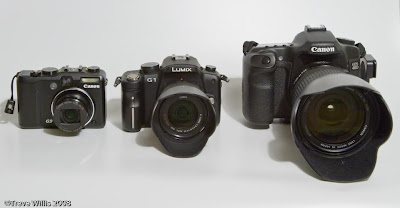
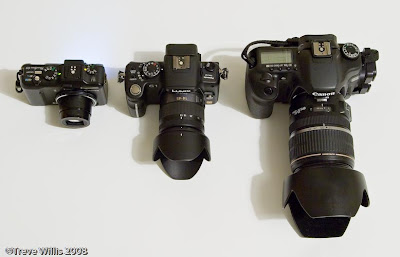

Photos showing the relative sizes of the Canon G9, Panasonic G1 + 14-45 f3.5-5.6 lens and Canon 40D + 17-55mm f2.8 lens combinations


The table below lists the weights of these three cameras in their ready to use configuration as in the photos above; eg including lens, battery, storage card, lens hoods & caps as well as the camera straps and in the case of the 40D the L bracket.


Canon G9
Panasonic G1
Canon 40D
Weight – g
378
666
1,720


While the G1 is pretty light compared with the 40D, being more than a kilo lighter, it is much heavier than the G9. The G9 easily fits into a jacket pocket (the Ricoh GX100 fits into an even smaller pocket), but the G1 does not – mostly because the G9’s lens withdraws into its casing when it is turned off and the G1’s does not. It really is a camera to tuck into the corner of a small bag or to carry around in one hand or slung around your neck. That said, it is however, much easier to carry than the 40D and much more unobtrusive. Although I have not yet tried or even handled the 45-200mm lens for the G1 the specs for it indicate that it is both much smaller and lighter than any equivalent lens for a DSLR, so as a system ranging from the 35mm equivalent of 28mm to 400mm it looks pretty compact and light. Panasonic plan to market a 20mm f1.7 lens in 2009 and this might be thin enough to make the whole set up (jacket) pocketable, especially if it is a “pancake” type lens.

Ease of use

I am not a great one for reading manuals and I found that simply picking up the camera and using the accumulated knowledge of working with a dozen or more digital cameras over the last few years I simply “got on with it”. I found it pretty intuitive to use, although I did have to resort to the manual to work out how to set exposure compensation as I noticed when reviewing some images on the LCD screen that I had accidentally dialled in compensation when I had not meant to – I discovered that it is quite easy to do that as the front dial on the hand grip just below the shutter release button toggles between setting the aperture (in aperture priority mode, which is the one I nearly always use) and exposure compensation by pressing it in; rotating the wheel changes the setting.

I like the array of buttons that can be used to make changes as searching through screen menus often means missing the shot. There is a dedicated ISO setting button, but I prefer the G9’s dial for changing ISO setting, although it is quite easy to accidentally knock it. Many of the most commonly used settings can be reasonably quickly accessed via the Quick menu (Q.MENU) button just behind the shutter release. This also remembers the last Quick menu item you used to change settings so repeated changes of a particular setting during a shoot is reasonably quick if that is what you only use the Quick menu button for. The Fn button might be useful if you could set which functions it accessed, but the camera works this out for you from what you recently used so it is not reliably useful.

So my first impressions of ease of use are that it is much like most digital cameras these days and easy and quick to pick up how to use most of its main functions. No doubt I will have to delve into the manual in due course to extract more from it, but for now I am happy to just use it.

The Lens
The lens has a slower f-stop range than I would ideally like in f3.5-f5.6 – I would prefer a constant f stop, such as Canon’s f4 lens range, and for it to be faster, but this would almost certainly make it bulkier and more expensive; so I will just see how it performs over time.


The lens is made from an engineering plastic, but the lens mount is made from metal, indicating to me that it is a quality lens - there is little slop when the zoom is extended, and the front element does not rotate when focussing (making the use of filters easier – it has a 52mm filter thread). On the left hand side is there is a single switch the turn the image stabilisation on and off. The supplied lens hood is the usual bayonet mounted petal type and it fits snugly and feels to be good quality. The lens cap is a centre squeeze type so is easy to take on and off.

The zoom ring is quite stiff and a bit stiffer towards the wide angle end of the range - I prefer this to it being too sloppy. The manual focus ring has no effect if you are in an autofocus mode, but in manual focus mode it immediately switched the EVF or screen into 5x mode to make focussing more accurate; the focus area can be moved around the screen with the arrow buttons – I like that. The focus ring itself is light, but not too light, and moves easily.

The focussing motor is essentially silent – I do not think that it makes any more noise than my Canon USM lenses. When it focuses in autofocus mode nothing seems to move.

All-in-all the lens looks, feels and works fine.

The Electronic View Finder (EVF) and Display

I have never really got on with an EVF before, but the reviews said that it was much better than most and that is exactly what I have found. It is certainly grainy to look at and flickers. When I zoom in and out or move the camera about the EVF image wobbles and flickers, but it is only momentary. The actual image is very contrasty and tends to flip flop between dark and bright when you scan around for the right composition; again this tends to be fairly short lived. So far I have not found it a limiting feature, but it is not for capturing fast moving action.

The main 3” display is pretty good – not as good at the latest DSLRs’ screens, but good enough for most use. It does, however, have one huge advantage in that it is a fully articulated screen. It can be turned around to protect the screen in transport, or swivelled into any angle so that it can be used above your head, at waist level, looking left or right, or even behind you) – in fact pretty much any direction that you might like to use. As you move the screen about flipping it over to look left or right the camera senses the change and flips the image to compensate to that it is always the right way up.

Sensors on the EVF detect the presence of something close – normally your eye – and automatically switches the main screen off and the EVF on. I have found this fine so far, but it might be irritating if it tends to turn off when not up to you eye. So far it has not annoyed me, but in any case the feature can be turned off. There is a switch to manually swop between the EVF and the screen. The EVF also has dioptre adjustment.

When you press the shutter release the EVF blacks out just as a DSLR would when the mirror flips up, but it seems to blank out for longer than a DSLR would – even with quite fast shutter speeds the black out time is quite noticeable.

Autofocus
While this might not normally seem much of an issue the G1 (and I guess all Micro Four Thirds cameras in the future) uses contrast detection autofocus rather than the phase detection system that is used in DSLRs. This is the same system most liveview implementations in DSLRs use and it is usually slow and painful.

Panasonic, however, seem to have worked out how to do it as I have found that the camera focuses quickly and accurately. It may not be up to the standard of top notch DSLRs, but it is much better than the compacts I have used and I have no complaints - again I do not anticipate using it for fast moving action shots.

There are plenty of choices for setting auto or manual focus, with options like face detection, tracking focus, multiple area (23 areas) focus or single area focus. The latter can be resized and moved about. I tend to leave it in the middle and use the normal half-press method to lock the focus, then recompose for the final shot.

With the 14-45 lens the focusing is pretty swift – perhaps not a snappy as a Canon with a USM drive lens, but pretty quick. I have certainly used much slower focusing lenses on DSLRs. The image tends to glide quickly into focus rather than snap in, but I was pleasantly surprised by its speed and accuracy. When focus is found the focus area marking lines in the EVF turn green, a green spot appears in the top right hand side of the screen and the camera beeps.

Battery

Batteries are pretty critical to digital cameras – without juice the camera is dead regardless of how good it is. The G1 takes a DMW-BLB13E 1250mAh li-ion battery. It is quite a chunky battery – about the same length and width as the Canon G9’s NB-2l, but about 50% thicker – the dimensions are 43.5 x 36.5 x 21.5mm, with the actual contacts protruding about another 1.5mm from one end.

Since battery power is so important I like to buy a spare battery as soon as I buy a camera, but this battery ranges in price from £59 to £83 in the UK with no generic replacement available yet as far as I can find. This is way more than I am willing to pay, so I will wait until I decide whether to keep the camera or not before buying a spare, and in any case I will wait until the price comes down or a generic from a reputable maker such as Hähnel appears.

I have no idea how long a charge will last for yet – I’ll do some real world tests and report the results later. I did fill up a whole 2gb card (138 shots) while testing burst rates etc without any noticeable drop in battery charge level, but that is not much of a real world test as I did not look at the reviews very often during the test.

RAW file burst rate

One of the drawbacks of the Canon G9 and Ricoh GX100 is their tardy RAW writing times. The G1 is supposed to have a 7 image RAW file buffer with a burst rate of 3 frames per second in its high speed burst mode setting.

Using a Sandisk Extreme III SD card the G1 took 7 shots in about 2.5 secs before the buffer became full, which is about 3 frames per sec, and from there on took about one shot every 1.25 secs – after a dozen shots I got bored so I presume that it continues firing at that rate until the card is full. After the burst the buffer takes about 7 secs to clear. If you start shooting again before the buffer is clear it takes as many shots at 3 fps as there is space in the buffer for before switching to the 1 shot every 1.25 secs rate.

I am pretty happy with this and I don’t think that it will limit my picture taking at all as I do not really anticipate using the G1 for action photography.

With RAW files only (not with JPEGs as recorded simultaneously as I never seem to use them and they just take up more card space) the 2gb card holds about 135-140 images; being about 14mb each.

Image Quality.
The colour space is switchable between sRGB and Adobe RGB – I set all my other cameras to Adobe RGB, so the G1 is set to that too.

Since the whole point of this camera is superior image quality in a compact and portable package this is the key for me. I set the camera to record RAW files and looked forward to looking at them and printing them from Lightroom. Oh, but…

I have Lightroom 1.4.1 and guess what? Adobe has stopped adding in new RAW file compatibility to this version, only Lightroom 2.

If I want to use Lightroom as a RAW converter for the G1, along with recently launched cameras such as the Canon 5D MkII and the Canon G10, then I will have to spend £100 to upgrade to Lightroom 2 whether I like it or not. In fact Adobe’s web site is currently saying that Lightroom 2 will not support these until sometime in December when Lightroom 2.2 is due. If I wanted to use Adobe Camera Raw instead (which does support them, but only the version compatible with CS4; not CS3) I will have to upgrade to Photoshop CS4, although I am quite happy in every other way with CS3 for the time being.

In fact the Adobe site says that its DNG converter does not work properly yet with G1 files – it triples their size! Apparently they are working on this and it is due to Adobe only being able to do linear demosaicing, which triples the file size.

So I have not actually looked at image quality yet…

I will download the 30 day trial version of Lightroom 2 from Adobe when version 2.2 is released and hope that this is in time to be able try it out over Christmas. Hopefully I will not then mess up my existing Lightroom set-up (I seem to remember in a review I saw somewhere that the catalogs are not interchangeable so once converted to Lightroom 2 I suspect that there is now way back to Lightroom 1.4). This will tell me whether I am going to keep the G1 or not.
I could use the supplied Silkypix software, which is reputed to produce OK RAW conversions, but to have a clunky user interface. Since I moved from using a multiplicity of packages (Capture One, Breezebrowser, Qimage to name but a few) to using Lightroom as the core of my digital workflow I do not want to learn a new piece of software just to be able to use a particular camera – there lies madness. I simply want to spend more time taking pictures and less in front of a computer working on them. If this is not sorted out properly then this would be a deal breaker for me – perhaps why the camera appeared on eBay so quickly…?

Perhaps I ought not to sulk and just try Silkypix (or perhaps I should call that Sulkypix?).

Conclusions
So, a nice little camera to use, but a shame I can not view and convert the RAW files in Lightroom without upgrading to Lightroom 2.2, whenever it appears. Perhaps Panasonic would like to start using DNG files… just a thought.

I shall be adding to the blog over the next few weeks as I use the camera and get to know it better – and I start to print images from RAW files taken with it.

Read more...